
定位
为什么需要定位
提问:以下情况使用标准流或者浮动能实现吗?
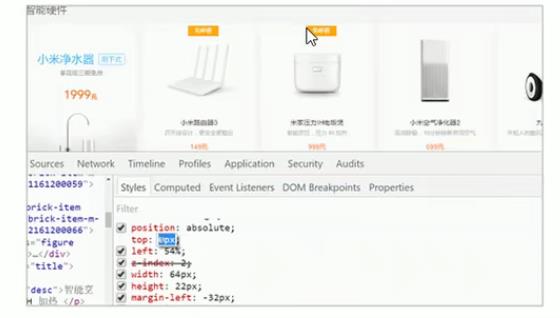
某个元素可以自由的在一个盒子内移动位置,并且压住其他盒子
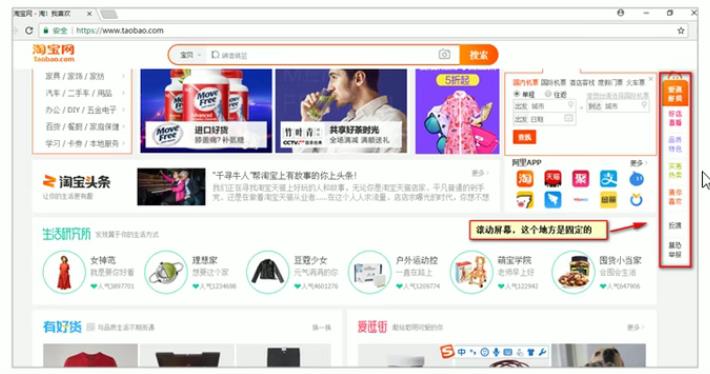
当我们滚动窗口的时候,盒子是固定屏幕某个位置的
警告
标准流或浮动都无法快速实现以上效果,此时需要定位来实现
总结:
- 浮动:让多个块级盒子一行无缝隙排列,常用于横向排列盒子
- 定位:让盒子自由移动位置或固定屏幕位置,可以压住其他盒子
定位的组成
定位 = 定位模式 + 边偏移
定位模式
通过position属性设置:
| 值 | 语义 |
|---|---|
| static | 静态定位 |
| relative | 相对定位 |
| absolute | 绝对定位 |
| fixed | 固定定位 |
边偏移
决定元素的最终位置:
| 属性 | 示例 | 描述 |
|---|---|---|
| top | top:80px | 距离父元素上边线的距离 |
| bottom | bottom:80px | 距离父元素下边线的距离 |
| left | left:80px | 距离父元素左边线的距离 |
| right | right:80px | 距离父元素右边线的距离 |
静态定位
元素的默认定位方式,无定位效果:
css
选择器 { position: static; }特点:
- 按照标准流特性摆放
- 没有边偏移
- 布局时很少用到
相对定位
相对于元素原来的位置移动:
css
选择器 { position: relative; }例子
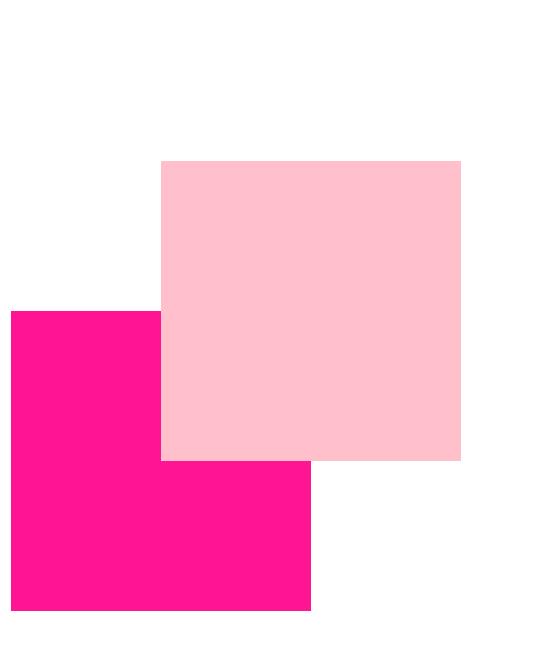
html
<head>
    <style>
        .box1 {
            /* 偏移模式:相对偏移 */
            position: relative;
            /* 边偏移,相对原来上偏 左偏100px */
            top: 100px;
            left: 100px;
            width: 200px;
            height: 200px;
            background-color: pink;
        }

        .box2 {
            width: 200px;
            height: 200px;
            background-color: deeppink;
        }
    </style>
</head>

<body>
    <div class="box1"></div>
    <div class="box2"></div>
</body>特点:
- 参照点是自身原有位置
- 保留原有空间(不脱标)
典型应用
给绝对定位元素当父级容器
绝对定位
相对于祖先元素移动:
css
选择器 { position: absolute; }特点:
- 无定位祖先时以浏览器左上角为基准
- 以最近的有定位祖先为参照点
- 不保留原有位置(脱标)
例子1 没有祖先元素
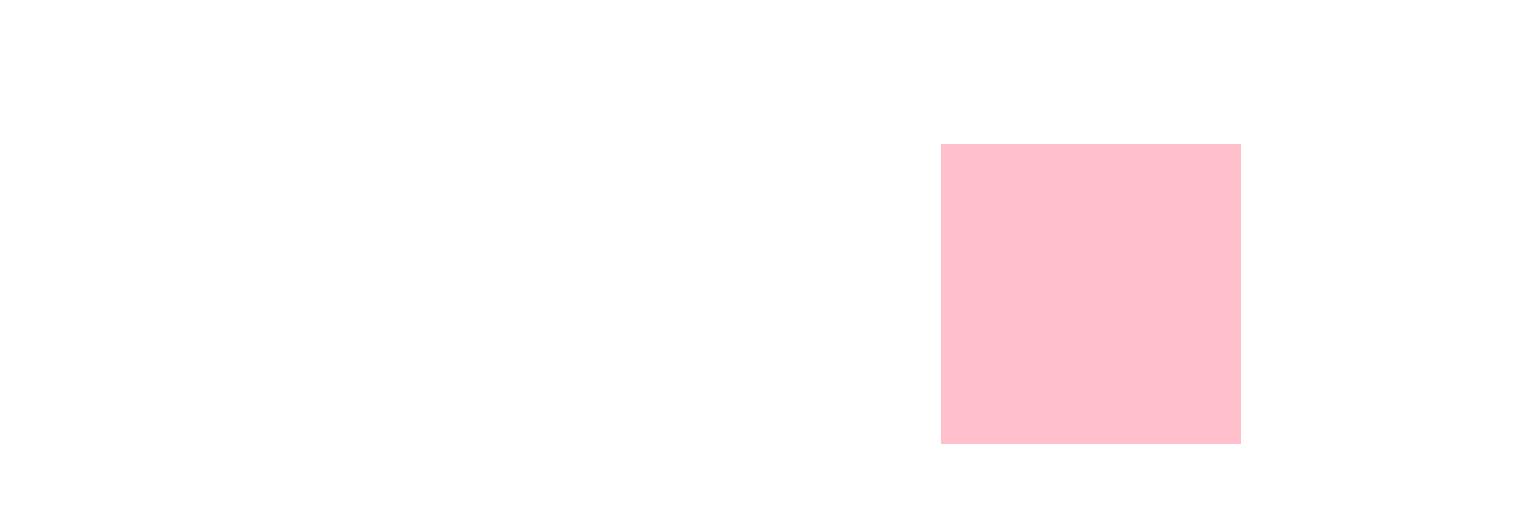
html
<head>
    <style>
        .son {
            position: absolute;
            top: 100px;
            right: 200px;
            width: 200px;
            height: 200px;
            background-color: pink;
        }
    </style>
</head>

<body>
    <div class="son"></div>
</body>例子2
有祖先元素,但祖先元素没有定位
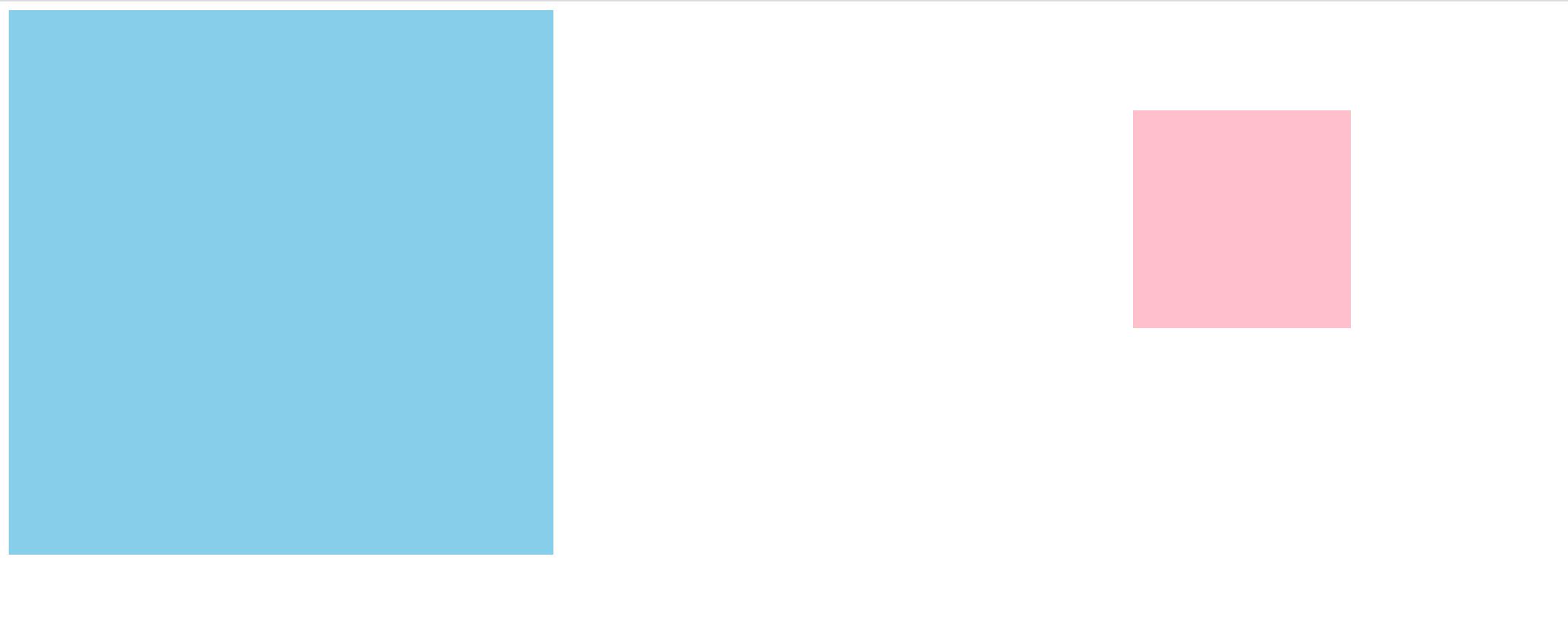
html
<head>
    <style>
        .father {
            width: 500px;
            height: 500px;
            background-color: skyblue;
        }

        .son {
            position: absolute;
            top: 100px;
            right: 200px;
            width: 200px;
            height: 200px;
            background-color: pink;
        }
    </style>
</head>

<body>
    <div class="father">
        <div class="son"></div>
    </div>

</body>例子3
父元素有定位模式
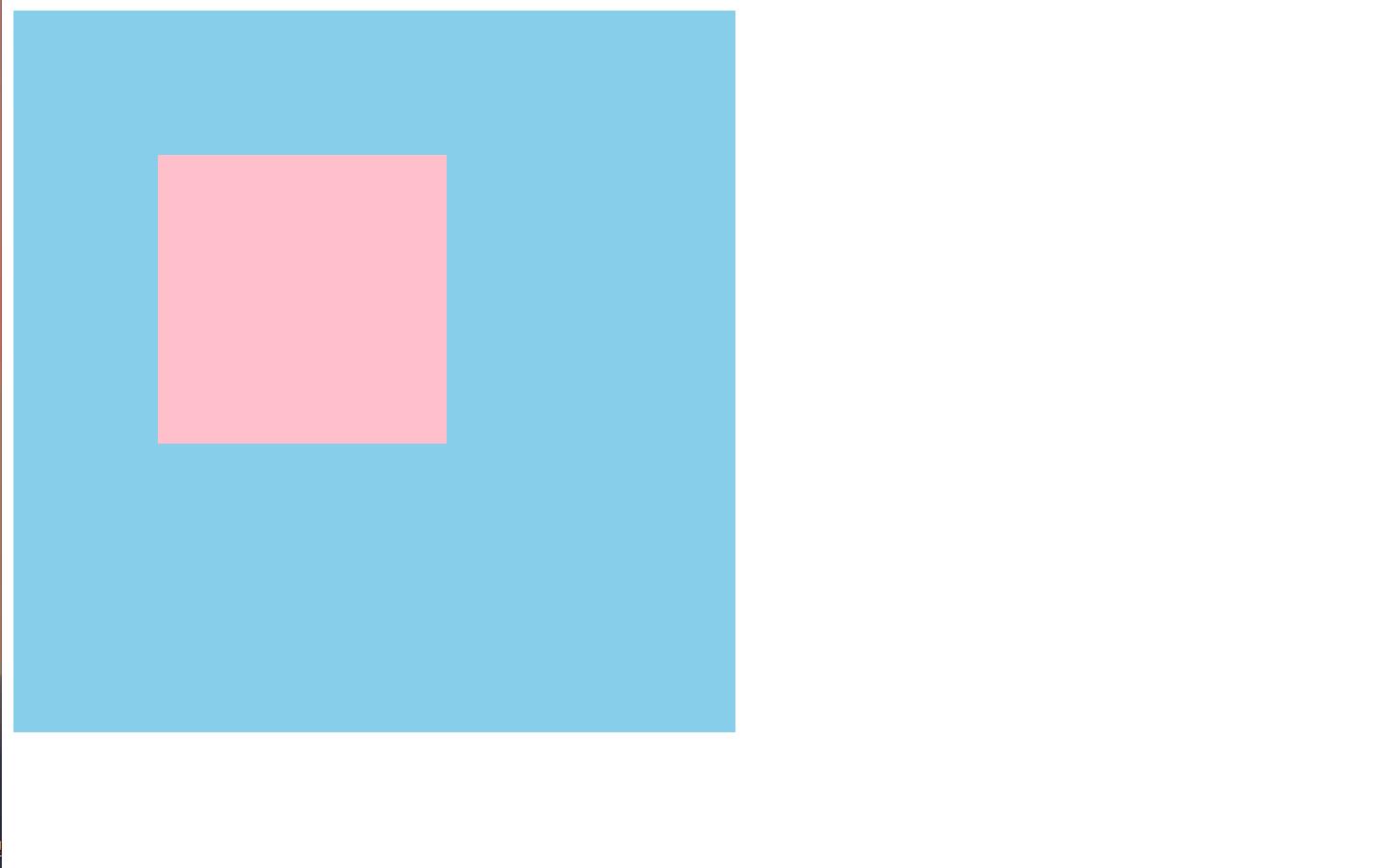
html
<head>
    <style>
        .father {
            /* 给父元素加个定位模式 */
            position: relative;
            width: 500px;
            height: 500px;
            background-color: skyblue;
        }

        .son {
            position: absolute;
            top: 100px;
            right: 200px;
            width: 200px;
            height: 200px;
            background-color: pink;
        }
    </style>
</head>

<body>
    <div class="father">
        <div class="son"></div>
    </div>

</body>例子4
父元素没有有定位模式,但爷爷有有定位模式
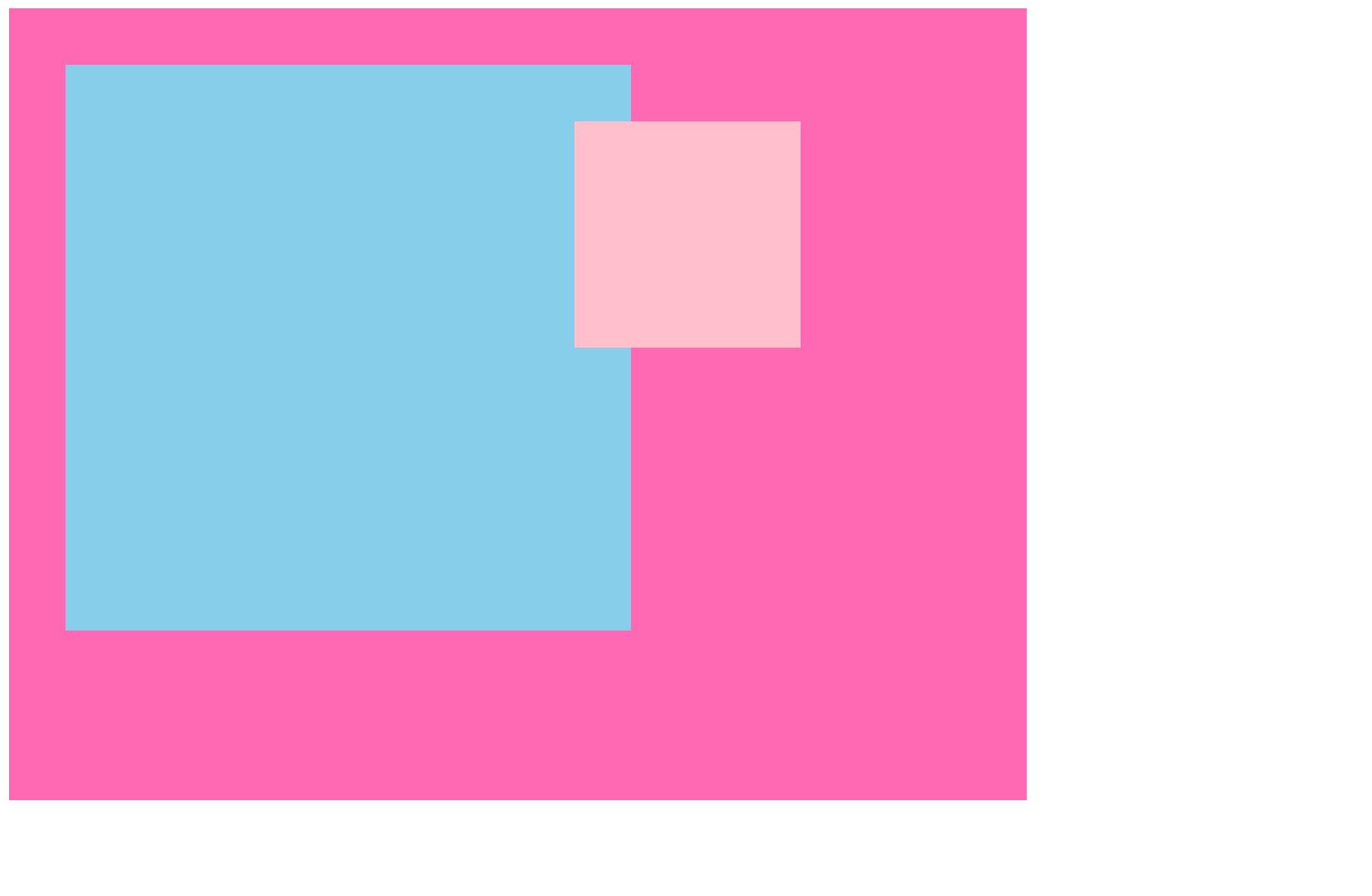
html
<head>
    <style>
        .yeye {
            position: relative;
            width: 800px;
            height: 600px;
            background-color: hotpink;
            padding: 50px;
        }

        .father {
            width: 500px;
            height: 500px;
            background-color: skyblue;
        }

        .son {
            /* 此时以爷爷定位为准 */
            position: absolute;
            top: 100px;
            right: 200px;
            width: 200px;
            height: 200px;
            background-color: pink;
        }
    </style>
</head>

<body>
    <div class="yeye">
        <div class="father">
            <div class="son"></div>
        </div>
    </div>
</body>子绝父相
核心口诀:子级绝对定位,父级相对定位
原因:
- 子级需要自由定位(不占位)
- 父级需要保留位置(不脱标)
- 父级作为定位基准点
例外情况
当父级不需要占位时,可以使用"子绝父绝"
固定定位
固定在浏览器可视区:
css
选择器 { position: fixed; }特点:
- 以浏览器窗口为参照
- 不随滚动条滚动
- 不保留原有位置(脱标)
小技巧:固定在版心右侧
css
.box {
left: 50%;
margin-left: 版心宽度/2;
}粘性定位
混合相对和固定定位特性:
css
选择器 {
position: sticky;
top: 10px;
}特点:
- 以浏览器窗口为参照
- 保留原有位置
- 必须指定至少一个边偏移
兼容性
IE浏览器不支持粘性定位
定位总结
| 定位模式 | 脱标 | 参照点 | 常用性 | 应用场景 |
|---|---|---|---|---|
| static | 否 | 无 | 很少 | 默认布局 |
| relative | 否 | 自身位置 | 常用 | 定位基准 |
| absolute | 是 | 定位祖先 | 常用 | 精准定位 |
| fixed | 是 | 浏览器窗口 | 常用 | 固定元素 |
| sticky | 否 | 浏览器窗口 | 较少 | 吸顶效果 |
定位叠放次序
控制重叠元素的显示顺序:
css
选择器 { z-index: 数值; }规则:
- 数值越大越靠上
- 相同值按书写顺序
- 仅对定位元素有效
- 无单位
定位特性
定位元素居中
css
.box {
position: absolute;
left: 50%;
top: 50%;
transform: translate(-50%, -50%);
}元素显示特性
- 行内元素添加定位后可直接设置宽高
- 块级元素添加定位后默认大小为内容大小
外边距塌陷
定位元素不会触发外边距合并
内容压盖
- 浮动:只压住盒子,不压住文字
- 定位:完全压住下方所有内容
显示与隐藏
display
css
.none { display: none; }/* 隐藏且不占位 */
.block { display: block; } /* 显示为块元素 */visibility
css
.hidden { visibility: hidden; } /* 隐藏但占位 */
.visible { visibility: visible; } /* 显示元素 */overflow
处理内容溢出:
| 值 | 描述 |
|---|---|
| visible | 默认显示溢出内容 |
| hidden | 隐藏溢出内容 |
| scroll | 始终显示滚动条 |
| auto | 按需显示滚动条 |
注意
有定位的盒子慎用overflow:hidden